

Close Menu
The Roaming DevThe Roaming Dev

    Subscribe to Updates

    What's Hot

    Best Cities for Remote Developers (2026 Guide)

    June 3, 2026

    Remote Developer Setup: The Work-From-Anywhere Build

    June 3, 2026

    Remote Developer Jobs: The Complete Work-From-Anywhere Guide

    June 3, 2026
    Facebook X (Twitter) Instagram
    The Roaming DevThe Roaming Dev
    X (Twitter) Instagram Pinterest Reddit
    Subscribe Now
    • Home
    • About Us
    • Where to base
      1. Accomodation
      2. Best Places For Remote Devs
      3. Destination guides
      4. Coworking & wifi
      5. Travel Logistics
      Featured
      Best Places For Remote Devs

      Best Cities for Remote Developers (2026 Guide)

      June 3, 2026
      Recent

      Best Cities for Remote Developers (2026 Guide)

      June 3, 2026

      Best Places to Travel in Winter: Escape the Cold in 2025

      August 1, 2025

      Best Places to Visit in Europe in October for Fall Getaways

      July 4, 2025
    • Mobile Set-Up
      1. Connectivity and Security
      2. Dev tools & editor setup
      3. Laptops & portable hardware
      4. Productivity & collaboration
      5. View All

      What Is Digital Nomadism? The State of Digital Nomadism in 2024

      July 11, 2024

      How to Become a Digital Nomad in 2024 (Pros, Cons, and Common Jobs)

      February 28, 2024

      Best Python Frameworks for Web Development: A 2025 Guide

      September 22, 2025

      Best Open Source VPN: Secure Your Connection for Free

      September 1, 2025

      Best Open Source Software for Developers: Top Picks for 2025

      August 3, 2025

      Best Mechanical Keyboard for Programming: Top Picks for 2025

      May 8, 2025

      Best Speakers For Mac Mini: Enhance Your Audio Experience

      September 2, 2025

      Best Monitor for Mac Mini: Ultimate Buyer’s Guide

      August 5, 2025

      Best Monitor for Developers: Upgrade Your Coding Setup

      August 2, 2025

      Best Linux Distro for Developers: Find the Perfect Fit

      June 5, 2025

      7 Reasons Why is Laravel the best PHP framework in 2024?

      March 30, 2023

      Best Mac Time Tracking Apps for Developers (2026)

      January 30, 2023

      How To Become a PHP Developer in 2024 [Step By Step Beginner’s Guide]

      January 25, 2023

      Is PHP Dead? The State Of PHP in 2024.

      January 24, 2023

      Remote Developer Setup: The Work-From-Anywhere Build

      June 3, 2026

      Best Python Frameworks for Web Development: A 2025 Guide

      September 22, 2025

      Best Video Players for Mac: Smooth & High-Quality Playback

      September 19, 2025

      Best Speakers For Mac Mini: Enhance Your Audio Experience

      September 2, 2025
    • Nomad Logistics
      • Banking & payments
      • Insurance & health
      • Taxes for remote workers
      • Visas & residency
    • Dev Careers
      1. Remote dev jobs & roles
      2. Freelancing & contracting
      3. View All

      Jobs for Americans in Europe: Ultimate Guide (2025)

      January 5, 2025

      17 Best Work-From-Home Jobs Requiring No Experience

      January 4, 2025

      LiveOps Reviews 2024: 11 Things To Know Before Signing Up

      November 3, 2024

      TranscribeMe Reviews 2024: 11 Things To Know Before Signing Up

      November 1, 2024

      Best AI for Coding: Free & Paid Options for Developers

      August 7, 2025

      Best Open Source LLM in 2025: The Ultimate Guide for Developers

      August 4, 2025

      Remote Developer Jobs: The Complete Work-From-Anywhere Guide

      June 3, 2026

      Best AI for Coding: Free & Paid Options for Developers

      August 7, 2025

      Best Open Source LLM in 2025: The Ultimate Guide for Developers

      August 4, 2025

      Jobs for Americans in Europe: Ultimate Guide (2025)

      January 5, 2025
    • Contact
    The Roaming DevThe Roaming Dev
    How To Run A PHP Program In Visual Studio Code[Step By Step Guide 2024]
    Coworking & wifi

    How To Run A PHP Program In Visual Studio Code[Step By Step Guide 2024]

    A Beginner's Guide to Running PHP Code using Visual Studio Code In-Built Terminal
    The Roaming DevBy The Roaming DevJanuary 15, 2023Updated:May 13, 2024No Comments5 Mins Read
    Facebook Twitter Pinterest LinkedIn Tumblr WhatsApp Telegram Email
    php logo
    Share
    Facebook Twitter LinkedIn Pinterest Email

    Table of Contents

    Toggle
    • I. Introduction
    • II. Step-By-Step Guide
      • Step 1: Ensure You Have PHP Installed in your machine
        • How to Install PHP On Your Laptop?
          • A. How to Install PHP on Mac
          • B. How to Install PHP on Windows
      • Step 2: Configure VS Code to recognize PHP as a language
      • Step 3: Install Code Runner Extension
      • Step 4: Configure Code Runner Extension to run PHP Code in Vs Code
          • A. How to Configure Code Runner on Mac/Linux/Unix
          • B. How to Configure Code Runner on Windows
      • Step 5: Run Your PHP Code in Visual Studio Code
    • III. Conclusion

    I. Introduction

    In this blog post, I’ll show you how to run PHP in Visual Studio Code terminal using the CodeRunner extension.

    PHP is a widely-used programming language that is especially suited for web development. It is often used in conjunction with other technologies like HTML, CSS, and JavaScript to create dynamic and interactive websites.

    Visual Studio Code (VS Code) is a popular choice for PHP development due to its powerful features and wide range of extensions. One of the most powerful features of VS Code is its in-built terminal that allows developers to execute shell commands right within their IDE.

    It is pretty easy to run PHP code inside VS Code by following these five steps:

    1. Ensure You Have PHP Installed in your machine
    2. Configure VS Code to recognize PHP as a language
    3. Install Code Runner Extension
    4. Configure Code Runner Extension
    5. Run Your PHP Code in VS Code

    Let’s break down each of these steps.

    II. Step-By-Step Guide

    Step 1: Ensure You Have PHP Installed in your machine

    Before you can start using PHP in VS Code, you’ll need to have PHP installed on your computer. I would recommend installing nothing less than PHP 8.0.1. This is because PHP 7.4 recently reached its End Of Life on November 28th, 2022.

    To confirm php is installed on your machine, open terminal and run the following command.

    php -v

    You should get an output as below showing the PHP version installed.

    PHP 8.1.12 (cli) (built: Oct 30 2022 12:39:49) (NTS)
    Copyright (c) The PHP Group
    Zend Engine v4.1.12, Copyright (c) Zend Technologies
    with Zend OPcache v8.1.12, Copyright (c), by Zend Technologies

    If you have the output above, proceed to Step 2.

    If you get an error in this step, you must install PHP. Installing PHP on your computer will depend on the operating system in use.

    How to Install PHP On Your Laptop?

    A. How to Install PHP on Mac

    For Mac users, I recommend using HomeBrew to install PHP on your machine and for almost any other software you will ever need to install.

    Open your terminal and paste the below command:

    brew install php

    This will install the latest version of PHP, which at the time of writing is version 8.2.

    To install a specific version of PHP, use the below command and substitute 8.0 with the respective version of PHP you want.

    brew install php@8.0
    B. How to Install PHP on Windows

    To install PHP on your windows laptop, you can use either of these two ways:

    1. Download and Instal PHP from the official website
    2. Download and Install XAMPP

    Step 2: Configure VS Code to recognize PHP as a language

    Once you have it installed, you’ll need to configure VS Code to recognize PHP as a language.

    This can be done by adding the following line to your settings.json file:

    "files.associations": { "*.php": "php" }

    Step 3: Install Code Runner Extension

    The next step is to install the CodeRunner extension for VS Code. This extension allows you to run PHP code directly from within VS Code.

    You can install CodeRunner from the VS Code Extension Marketplace.
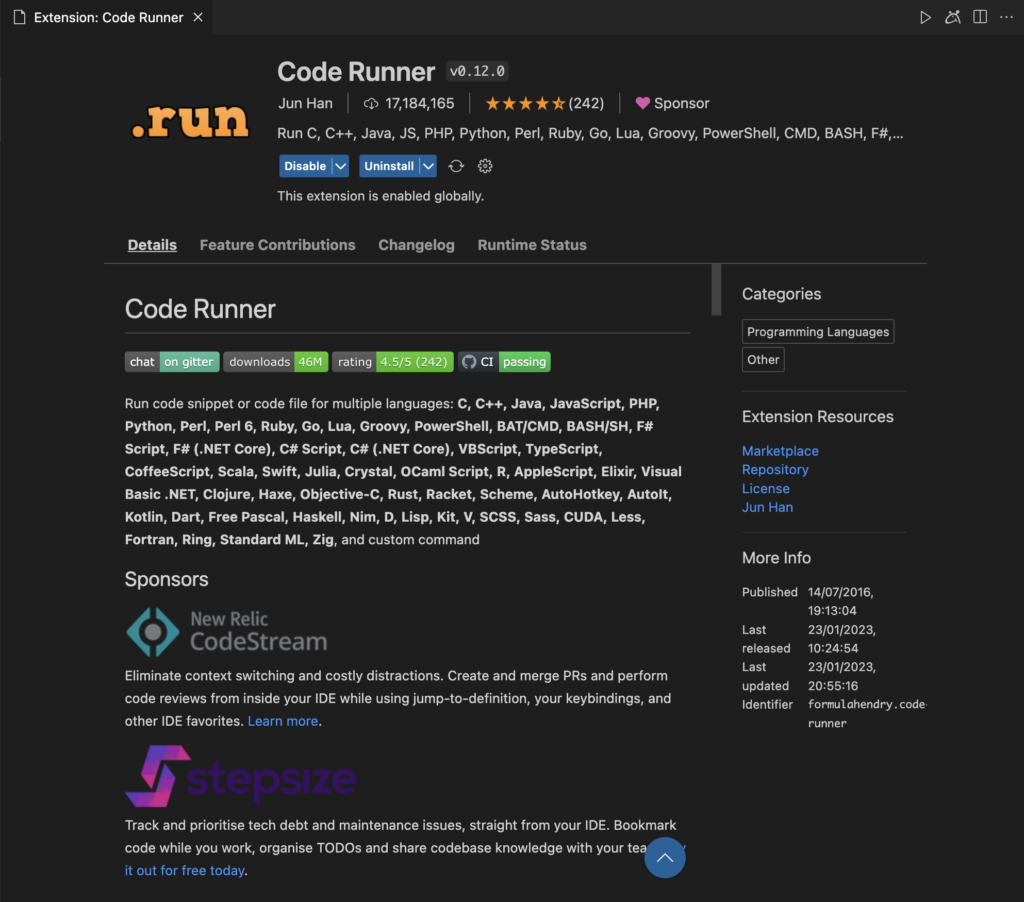
    Code Runner Extension

    Step 4: Configure Code Runner Extension to run PHP Code in Vs Code

    Once the extension is installed, we need to configure it to execute our PHP code within the VS Code Terminal.

    To do so, we will add the PHP Executable File Path to settings.json under CodeRunner settings.

    A. How to Configure Code Runner on Mac/Linux/Unix
    1. Open your settings.json file by pressing ⌘ + shift + P 
    2. Paste the code below at the end

    If you installed PHP using Homebrew:

    
    "code-runner.executorMap": {
       
            "php": "/opt/homebrew/bin/php",
        }

    Other PHP Installations(Linux/Unix):

    
    "code-runner.executorMap": {
       
            "php": "/usr/bin/php",
        }
    B. How to Configure Code Runner on Windows
    1. Open your settings.json file by pressing either F1 or Ctrl+Shift+P
    2. Paste the code below at the end.

    If you installed PHP using XAMPP:

    "code-runner.executorMap": {
       
            "php": "C:\\xampp\\php\\php.exe",
        }

    If you installed PHP from the Official Website:

    "code-runner.executorMap": {
       
            "php": "C:/php/php.exe",
        }
    1. On Your Windows Search, open Control Panel
    2. Click the Advanced System Settings
    3. Click on Environment Variables
    4. In the New System Variable window, add PHP Executable File Path to the value of the PATH environment variable
    5. Close and Reopen all Command prompt windows
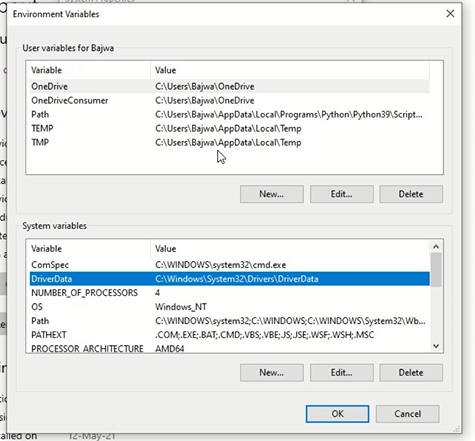
    windows-environment-variable
    Add PHP PATH to Environment Variables

    Step 5: Run Your PHP Code in Visual Studio Code

    With these steps done, you are ready to run your PHP code using the in-built VS Code terminal using Code Runner.

    CodeRunner can execute your PHP code using either of these prompts:

    • Right-click from within the VS Code Text Editor and click Run Code.
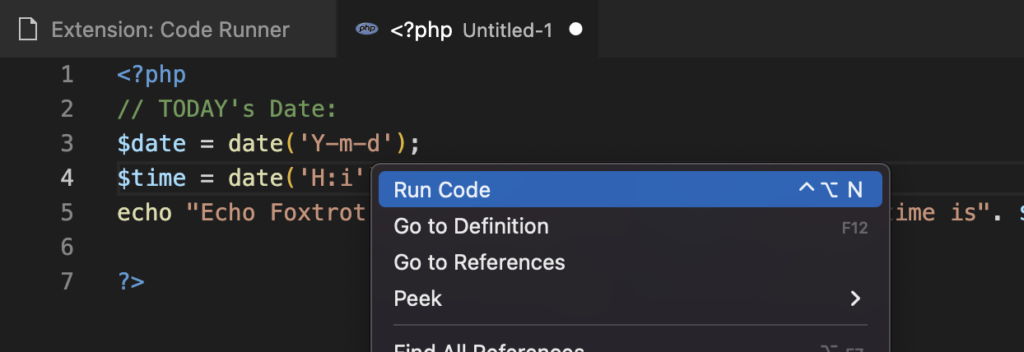
    right-click to run code using code runner
    Right Click to access Code Runner
    • Press Ctrl + Alt + N

    To test it out, you can copy this simple PHP script.

    <?php
    // echo TODAY's Date:
    $date = date('Y-m-d');
    $time = date('H:i');
    echo "Echo Foxtrot, Today's date is " . $date. " and the time is". $time ;
    
    ?>

    Your output should be as below.

    code runner execution result
    Code Runner PHP Code Output

    III. Conclusion

    In this blog post, I have shown you how to run your PHP code in VS Code terminal using the CodeRunner extension. We’ve covered how to set up PHP and configure VS Code, how to install and use the CodeRunner extension.

    By following these steps, you’ll be able to take advantage of the powerful features of VS Code and CodeRunner to develop and debug your PHP code.

    Related: How To Run Javascript Code in VS Code Terminal

    Dev Guide PHP
    Share. Facebook Twitter Pinterest LinkedIn Tumblr Email
    The Roaming Dev
    • Website

    Related Posts

    How To Become a PHP Developer in 2024 [Step By Step Beginner’s Guide]

    January 25, 2023

    Is PHP Dead? The State Of PHP in 2024.

    January 24, 2023

    7 Useful VS Code Extensions for PHP Developers in 2024

    January 16, 2023

    Top 9 VS Code Extensions for Laravel Developers in 2024

    January 15, 2023
    Add A Comment

    Comments are closed.

    Subscribe to My Newsletter

    Don't Miss
    Best Places For Remote Devs

    Best Cities for Remote Developers (2026 Guide)

    June 3, 2026

    Forget the beach photos for a second. The best city for a remote developer is…

    Remote Developer Setup: The Work-From-Anywhere Build

    June 3, 2026

    Remote Developer Jobs: The Complete Work-From-Anywhere Guide

    June 3, 2026

    Best Python Frameworks for Web Development: A 2025 Guide

    September 22, 2025
    Our Picks

    10 Best Remote Collaboration Software For 2024[Pros, Cons & Pricing]

    January 29, 2023

    10 Best Mac Apps For Developers In 2024

    January 28, 2023

    How To Become a PHP Developer in 2024 [Step By Step Beginner’s Guide]

    January 25, 2023

    How To Run Javascript Code In Visual Studio Code Terminal. [Step By Step Guide 2024]

    January 15, 2023
    Stay In Touch
    • Twitter
    • Pinterest
    • Instagram
    • Reddit
    About The Roaming Dev
    About The Roaming Dev

    Discover the digital nomad lifestyle, remote work insights, travel adventures, developer guides, and top software recommendations on our lifestyle blog. Your hub for a tech-savvy, nomadic journey.

    Email us: theroamingdev@gmail.com

    Follow me on social media for more content!

    X (Twitter) Instagram Pinterest Reddit
    Our Picks

    10 Best Remote Collaboration Software For 2024[Pros, Cons & Pricing]

    January 29, 2023

    10 Best Mac Apps For Developers In 2024

    January 28, 2023

    How To Become a PHP Developer in 2024 [Step By Step Beginner’s Guide]

    January 25, 2023
    Legal & Compliance
    • Terms Of Use
    • Disclaimer
    • Privacy Policy
    Facebook X (Twitter) Instagram Pinterest
    • Home
    • Dev Careers
    • Where to base
    • Mobile Set-Up
    • Nomad Logistics
    © 2026 The Roaming Dev

    Type above and press Enter to search. Press Esc to cancel.

    ~/the-nomads-choice/subscribe.sh
    Wifi Â· Found

    # for devs who push to prod from a hammock

    $ join –roaming-devs

    One email. Zero fluff. The tools, gigs, visas, and dirt-cheap fast-wifi spots that keep roaming devs shipping from anywhere on Earth.

    ✓remote gigs & contracts worth your time
    ✓nomad-proof tools, setups & dev stacks
    ✓visa & tax hacks, decoded for builders
    ✓fast-wifi cafés the tourists never find
    broadcasting live from a beach in Bali

    no spam, ever. unsubscribe in 1 click. — The Nomad’s Choice

    Ad Blocker Enabled!
    Ad Blocker Enabled!
    Our website is made possible by displaying online advertisements to our visitors. Please support us by disabling your Ad Blocker.