


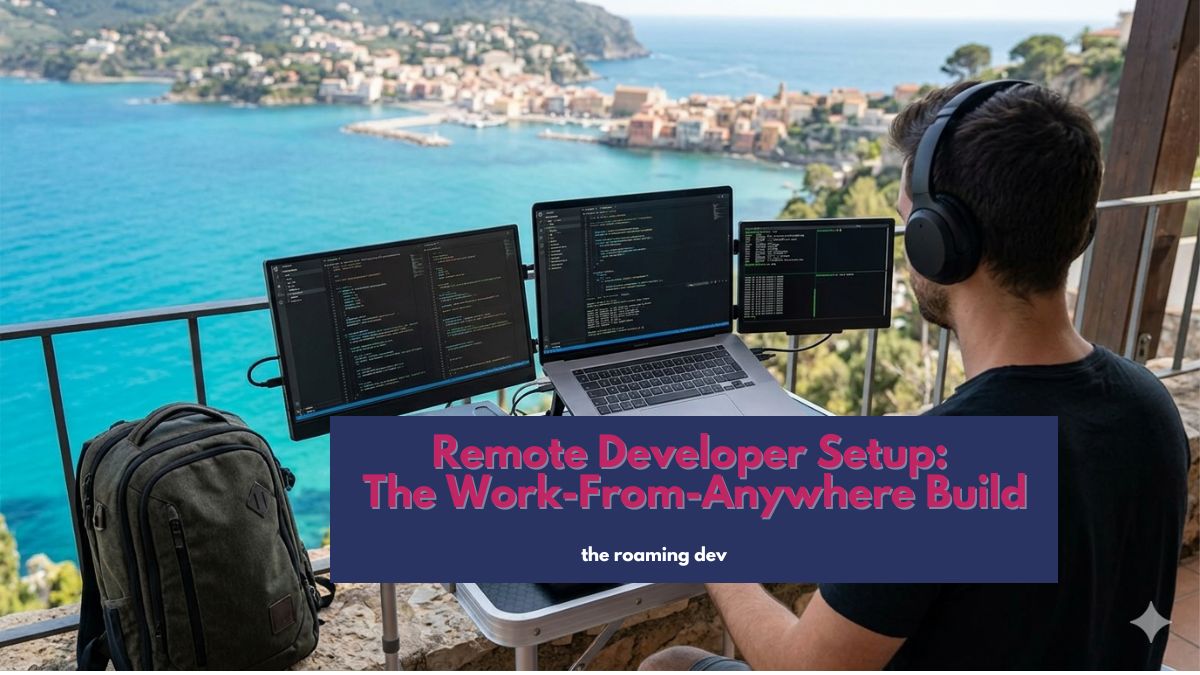
Your whole office fits in a backpack now. That isn’t a productivity-guru fantasy; it’s just how remote development works once you stop confusing “powerful” with “heavy.”
For years, developers hauled maxed-out laptops and a nest of chargers everywhere, as if raw horsepower had to come along for the ride. It doesn’t.
Move the heavy work to a server, keep your connection solid, and a thin laptop plus a decent café turns into a full workstation. Lisbon, Lagos, or your spare room, the machine never knows the difference.
A remote developer setup comes down to four things: the hardware you carry, the connectivity and security that keep you working safely, the tools you code and ship in, and the productivity stack that keeps a distributed team in sync.
Nail those four and your location stops being a factor in whether you get work done.
Think of this page as the map. Each of those four areas has its own hub of deeper guides below, and those hubs link out to the individual reviews and how-tos.
Read this to see how the pieces fit together, then jump to whatever you’re building next.
What goes into a remote developer setup?
Here’s the whole thing in one glance, roughly in the order you should build it:
- Portable hardware — a light, long-battery laptop and the few bits of gear that earn their place in the bag.
- Connectivity and security — a reliable connection, a backup for when it fails, and protection on public networks.
- Dev tools and editor setup — a cloud dev environment, your editor, and deployment you can run from a browser.
- Productivity and collaboration — the async, tracking, and team tools that keep work moving across timezones.
One idea ties all four together, so it’s worth saying plainly before we go on.
The trick: rent the power, carry the light
Most “remote setup” advice quietly assumes you’re sitting at a desk with fast, stable internet and a machine that never fails.
Travel breaks every one of those assumptions. So flip the model. Instead of buying a heavy, expensive laptop to run big builds locally, you run them on a rented server and connect to it.
Your laptop turns into a thin client, a nice screen and keyboard, while a machine somewhere else does the sweating.
The payoff is huge for anyone who moves around. You travel lighter. You replace a lost or stolen laptop in minutes, not days.
And your environment stays identical on every device you touch. That single shift shapes every recommendation below.
1. Laptops and portable hardware
Buy fewer laptops than you think you need. Once your heavy compute lives in the cloud, horsepower stops being the thing you’re paying for.
Weight, battery, and a good screen matter far more, because those decide how it feels to work from a train seat or a rooftop with one plug between six people.
A sub-1.5kg machine with all-day battery beats a faster, heavier one every single time you’re away from a wall socket.
The rest of the kit stays short on purpose: a universal adapter, one high-watt GaN charger that powers everything, a power bank, and maybe a fold-flat portable monitor.
Notice what’s missing. No tower. No 4K reference display. No mechanical keyboard the size of a house brick. Those belong to a room you never leave, not a bag you carry through airports.
Go deeper in the Laptops & portable hardware hub, where the individual guides cover specific laptop picks, portable monitors, and one-bag packing.
2. Connectivity and security
Nothing ends a workday faster than café wifi that dies halfway through a deploy. The fix is redundancy, and it’s cheap.
Carry an eSIM with wide country coverage, keep a phone plan that allows tethering, and scout a coworking space or a reliable café before the day you actually need it.
Now one flaky connection has two backups, and a dropped signal costs you a minute instead of a deadline.
Security is the half people skip until it bites them. Your office is a different public network every week, so assume someone’s watching.
Run a VPN or a private mesh like Tailscale, which keeps your cloud server reachable only by your own devices. Encrypt your disk.
Use a password manager with two-factor turned on. Do that, and a laptop stolen from a hostel becomes an annoyance rather than a disaster.
Go deeper in the Connectivity & security hub, with individual guides on eSIMs, VPNs, mesh networking, and staying safe on public wifi.
3. Dev tools and editor setup
This is where “carry the light” actually happens. Rather than running big builds on the laptop in your lap, you run them on a remote machine and connect from your editor.
In practice that means a cloud dev environment: GitHub Codespaces, or a small VPS reached through VS Code Remote-SSH or JetBrains Gateway, sitting behind a private mesh so it’s reachable anywhere yet exposed to nobody.
Which to pick? Codespaces gets you coding in seconds with no server admin, so it’s the fastest way in.
A VPS costs a few dollars a month and hands you full control, which suits anyone who likes owning their stack. Either way, the environment becomes the thing you rely on, not the laptop.
Make it reproducible, and you’ve won. Keep your languages, shell, and dotfiles in version control, and you can rebuild your entire workspace on a borrowed machine in ten minutes flat.
That’s exactly what you want the day a laptop dies mid-trip. The same logic covers deployment: a tool like Laravel Forge lets you provision and ship a production server from a browser tab, so you’re never the sysadmin chained to a desk at 2 am.
Go deeper into the Dev tools & editor setup hub, covering editor configs, cloud environments, deployment tools, and dotfile setups.
4. Productivity and collaboration
Here’s the part gear reviews always skip: none of it matters if the work doesn’t ship.
Your team can’t read your body language through a screen, so your job is to make progress visible and your hours accountable.
That’s what this pillar is really about: async updates, clear documentation, a shared board, and a calendar that respects the fact that you’re eight hours ahead.
Freelancers, pay attention to one thing especially: track your time. Every hour you forget to log is an hour you never bill, and over a year that’s real money left on the table.
Our roundup of the best Mac time tracking apps is the place to start, and the wider hub covers the collaboration tools that keep a scattered team pulling the same direction.
Go deeper in the Productivity & collaboration hub, with guides on time trackers, async communication, and team collaboration.
How to build your setup, in order
Assemble the pieces in this sequence and nothing blocks anything else:
- Pick the laptop. Light, long battery, good screen. Everything else hangs off it.
- Lock down connectivity and security. eSIM, a hotspot habit, a VPN, and disk encryption — sorted before you leave, not after.
- Stand up your cloud environment. Move the heavy compute to a Codespace or VPS and connect from your editor.
- Layer on the dev tools. Editor, terminal, dotfiles, browser-based deployment.
- Add the productivity stack. Time tracking and async collaboration, so the work stays visible.
Do it in that order, and swapping laptops later takes minutes, because the real remote developer setup lives in the cloud, not on the metal in your hands.
What does a remote developer setup cost?
Less than you’d guess, because the cloud is the cheap part.
As of mid-2026, GitHub Codespaces gives individuals 60 free hours a month, then charges from about $0.18 an hour; a small always-on VPS runs roughly $5 to $10 a month.
The laptop is your real spend, and here’s the quiet win: going cloud-first means you can buy a lighter, cheaper machine instead of a maxed-out one you’d rarely push.
Add an eSIM plan and a modest power kit, and a capable remote developer setup lands well within reach.
Home office or roaming setup: what actually changes?
Not every remote developer lives out of a suitcase, and the right setup reflects that. Staying put? Optimise for comfort and big screens, since nothing has to move.
On the road? Portability, battery, and resilience win, and everything has to fit in one bag. The two aren’t enemies, though.
Even a settled developer gains from the cloud-first core, because a dead laptop or a surprise trip never derails the work.
Build the portable foundation first, then add home comforts on top, not the other way round.
The mistakes that wreck a remote developer setup
Almost everyone gets the same handful of things wrong at first, so learn them the cheap way.
The big one is over-buying hardware; a heavy, maxed-out laptop is dead weight and wasted cash once the cloud does the lifting.
Close behind is treating the connection as an afterthought, then losing a whole day to dead café wifi with a deadline bearing down.
Plenty of people skip security too, right up until a public network burns them.
And freelancers forget to track their hours, which quietly bleeds real income month after month. Dodge those four, and the rest of the build mostly takes care of itself.
Frequently asked questions
It’s the hardware, connectivity, tools, and workflow a developer uses to work from anywhere. A good one pushes the heavy compute to the cloud, which keeps the physical kit light and easy to carry.
Four things: a light laptop, reliable and secure connectivity, a cloud dev environment with your editor and deployment tools, and a productivity stack for tracking time and collaborating async.
Once your compute lives in the cloud, weight, battery life, and screen quality matter more than raw power. A light machine with all-day battery beats a heavier, faster one for travel.
No, but it changes everything. It lets you carry a lighter laptop, switch devices instantly, and keep one consistent setup that survives a dead or stolen machine.
Better than a local one, oddly. A cloud environment keeps your project on a server, so a dropped connection pauses you rather than losing your work, and an eSIM plus a phone hotspot means you rarely lose the connection at all.
Run a VPN or a private mesh like Tailscale, encrypt your disk, and use a password manager with two-factor. Treat every café network as hostile and never send anything sensitive in the clear.
Start here, then go deeper
The whole philosophy fits in a sentence: move the heavy compute to the cloud, carry the lightest reliable kit you can, and make connectivity, security, and collaboration boringly dependable.
Do that, and your remote developer setup stops being a pile of gear and becomes a workflow that travels with you, almost weightlessly.
Also Read:
